ch1
Ch 1: First Steps with CMake
Why is Automated Tooling Essential in Programming?
- Streamlining Workflow: Programmers' workflow consists of designing, coding, and testing. They create changes, translate them into a compiler-friendly language, and verify their functionality.
- Handling Repetitive Tasks: High-quality application development involves numerous repetitive and error-prone tasks such as command execution, syntax checking, file linking, testing, and issue reporting.
- Effort and Memory: Remembering each step in the development process is challenging and diverts focus from actual coding.
Desired Automation Features:
- Ease of Use: Ideally, automation should begin with a simple action, like pressing a button after code modification.
- Attributes: The process should be smart, fast, extensible, and consistent across different operating systems and environments.
- Integration: Support is needed from both Integrated Development Environments (IDEs) and Continuous Integration (CI) pipelines.
- Role of CMake: CMake addresses many of these automation needs. Although it requires initial configuration and understanding, this complexity stems from the intricate nature of the development process it aims to streamline.
Why is CMake an Essential Tool in Modern Programming?
Purpose and Evolution:
- Automation of Building Process: CMake automates building scripts, detecting source modifications, managing compiler arguments, linking compiled files, and building modular solutions.
- Versatility: It addresses various aspects of building software, including compiling, managing dependencies, testing, installing, packaging, and documentation.
- Historical Development: Developed over 20 years ago by Bill Hoffman at Kitware, CMake has become an industry standard due to its evolving features and community support.
Advantages of CMake:
- Support for Modern Compilers and Toolchains: Continuously updated to work with the latest compilers.
- Cross-Platform Functionality: Works on Windows, Linux, macOS, and Cygwin.
- Integration with IDEs: Compatible with Microsoft Visual Studio, Xcode, Eclipse CDT, and others.
- Level of Abstraction: Allows grouping of files in reusable targets and projects.
- Community Support: Numerous projects built with CMake facilitate easy integration.
- Comprehensive Build Process: Includes testing, packaging, and installing as integral components.
- Maintenance: Regular deprecation of outdated features to maintain efficiency.
How CMake Works:
- Not a Standalone Builder: CMake orchestrates the building process but relies on other tools for actual compilation and linking.
Three Stages: Configuration, Generation, and Building.
- Configuration: Involves creating a build tree, collecting environment details, checking compilers, and parsing the CMakeLists.txt file for project structure and dependencies.
- Generation: Generates buildsystems specific to the environment, such as Makefiles or IDE project files.
- Building: Executes the build tool to produce final artifacts, utilizing compilers, linkers, and other tools.

CMake CLI
CMake is a family of tools and consists of five executables:
- cmake: This is the main executable that configures, generates, and builds projects.
- ctest: This is the test driver program used to run and report test results.
- cpack: This is the packaging program used to generate installers and source packages.
- cmake-gui: This is the graphical wrapper around cmake.
- ccmake: This is the console-based GUI wrapper around cmake.
CMake
This binary provides a few modes of operation (also called actions):
- Generating a project buildsystem
- Building a project
- Installing a project
- Running a script
- Running a command-line tool
- Getting help
cmake [<options>] -S <path-to-source> -B <path-to-build>

cmake -S ./project -B ./build
# generate a buildsystem in the ./build directory (or create
# it if it's missing) from the source in the ./project directory.
You can specify a few options during the generation stage.
- Selecting and configuring a generator decides
- which build tool from our system will be used for building,
- what build files will look like, and
- what the structure of the build tree will be.
So, should you care? Luckily, the answer is often "no."
- CMake does support multiple native buildsystems on many platforms; however, unless you have a few of them installed at the same time, CMake will correctly select it for you. This can be overridden by the
CMAKE_GENERATORenvironment variable or by specifying the generator directly on the command line, such as in the following:
cmake -G <generator-name> <path-to-source>- Some generators (such as Visual Studio) support a more in-depth specification of a toolset (compiler) and platform (compiler or SDK). Additionally, these have respective environment variables that override the default values:
CMAKE_GENERATOR_TOOLSETandCMAKE_GENERATOR_PLATFORM. - We can specify them directly, as follows:
cmake -G <generator-name> -T <toolset-spec> -A <platform-name> <path-to-source>Options for caching
-
CMake queries the system for all kinds of information during the configuration stage.
- This information is cached in CMakeCache.txt in the build tree directory.
- There are a few options that allow you to manage that file more conveniently.
-
The first thing that is at our disposal is the ability to pre-populate cached information:
cmake -C <initial-cache-script> <path-to-source>- We can provide a path to the CMake script, which (only) contains a list of set() commands to specify variables that will be used to initialize an empty build tree.
- The initialization and modification of existing cache variables can be done in another way (for instance, when creating a file is a bit much to only set a few variables).
- You can simply set them in a command line, as follows:
cmake -D <var>[:<type>]=<value> <path-to-source>-
The
:<type>section is optional (it is used by GUIs); you can use- BOOL, FILEPATH, PATH, STRING, or INTERNAL.
-
If you omit the type, it will be set to the type of an already existing variable; otherwise, it will be set to UNINITIALIZED.
-
One particularly important variable contains the type of the build: for example,
debugandrelease. -
Many CMake projects will read it on numerous occasions to decide things such as the verbosity of messages, the presence of debugging information, and the level of optimization for created artifacts.
-
For single-configuration generators (such as Make and Ninja), you'll need to specify it during the configuration phase with the
CMAKE_BUILD_TYPEvariable and generate a separate build tree for each type of config:Debug,Release,MinSizeRel, orRelWithDebInfo.
cmake -S . -B build -D CMAKE_BUILD_TYPE=Release- Note that multi-configuration generators are configured during the build stage. We can list cache variables with the
-Loption:
cmake -L[A][H] <path-to-source>- Such a list will contain cache variables that aren't marked as
ADVANCED. We can change that by adding theAmodifier. - To print help messages with variables - add the
Hmodifier. - Surprisingly, custom variables that are added manually with the
-Doption won't be visible unless you specify one of the supported types. - The removal of one or more variables can be done with the following option:
cmake -U <globbing_expr> <path-to-source>- Here, the globbing expression supports the * wildcard and any ? character symbols.
- Be careful when using these, as you might break things.
- Both of the -U and -D options can be repeated multiple times.
Options for debugging and tracing
- To get general information about variables, commands, macros, and other settings, run the following:
cmake --system-information [file]- The optional file argument allows you to store the output in a file. Running it in the build tree directory will print additional information about the cache variables and build messages from the log files.
- In our projects, we'll be using
message()commands to report details of the build process. - CMake filters the log output of these based on the current log level (by default, this is
STATUS).
cmake --log-level=<level>- Here, level can be any of the following:
ERROR,WARNING,NOTICE,STATUS,VERBOSE,DEBUG, orTRACE. - You can specify this setting permanently in the
CMAKE_MESSAGE_LOG_LEVELcache variable. - Another interesting option allows you to display log context with each
message()call. - To debug very complex projects, the
CMAKE_MESSAGE_CONTEXTvariable can be used like a stack. - Whenever your code enters a specific context, you can add a descriptive name to the stack and remove it when leaving. By doing this, our messages will be decorated with the current
CMAKE_MESSAGE_CONTEXTvariable like so:
[some.context.example] Debug message.- The option to enable this kind of log output is as follows:
cmake --log-context <path-to-source>If all else fails – and we need to use the big guns – there is always trace mode.
- This will print every command with the filename and exact line number it is called from alongside its arguments.
cmake --traceOptions for presets
- When dealing with the build tree path, generator, cache, and environmental variable, it's easy to get confused or miss something.
- Developers can simplify how users interact with their projects and provide a
CMakePresets.jsonfile that specifies some defaults. - To list all of the available presets, execute the following:
cmake --list-presets- You can use one of the available presets as follows:
cmake --preset=<preset>- These values override the system defaults and the environment. However, at the same time, they can be overridden with any arguments that are explicitly passed on the command line:
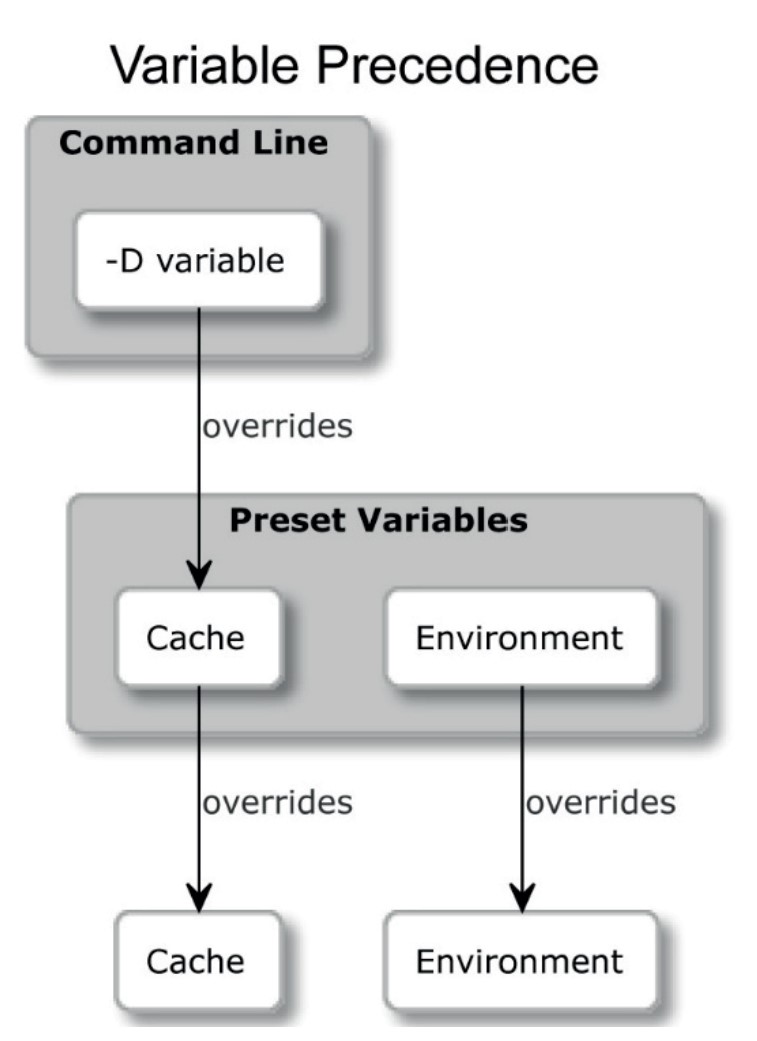
Building a project
- After generating our build tree, we're ready for the next stage: running the builder tool.
- Not only does CMake know how to generate input files for many different builders, but it can also run them for you with arguments that are specific to our project.
# The syntax of the build mode
cmake --build <dir> [<options>] [-- <build-tool-options>]- In the majority of these cases, it is enough to simply provide the bare minimum to get a successful build:
cmake --build <dir>- CMake needs to know where the build tree is that we generated. This is the same path that we passed with the
-Bargument in the generation stage. - By providing a few options, CMake allows you to specify key build parameters that work for every builder.
- If you need to provide special arguments to your chosen, native builder, pass them at the end of the command after the
--token:
cmake --build <dir> -- <build-tool-options>Options for parallel builds
By default, many build tools will use multiple concurrent processes to leverage modern processors and compile your sources in parallel. Builders know the structure of project dependencies, so they can simultaneously process steps that have their dependencies met to save users' time. You might want to override that setting if you're building on a powerful machine (or to force a single-threaded build for debugging). Simply specify the number of jobs with either of the following options:
cmake --build <dir> --parallel [<number-of-jobs>]
cmake --build <dir> -j [<number-of-jobs>]- The alternative is to set it with the
CMAKE_BUILD_PARALLEL_LEVELenvironment variable. - As usual, we can always use the preceding option to override the variable.
Options for target
Every project is made up of one or more parts, called targets.
- Usually, we'll want to build all of them; however, on occasion, we might be interested in skipping some or explicitly building a target that was deliberately excluded from normal builds.
- We can do this as follows:
cmake --build <dir> --target <target1> -t <target2> ...- As you will observe, we can specify multiple targets by repeating the
-targument. - One target that isn't normally built is clean. This will remove all artifacts from the build directory. You can call it like this:
cmake --build <dir> -t clean- Additionally, CMake offers a convenient alias if you'd like to clean first and then implement a normal build:
cmake --build <dir> --clean-firstOptions for multi-configuration generators
- Some generators offer more features than others, and one of these features is the ability to build both Debug and Release build types in a single build tree.
- Generators that support this feature include Ninja Multi-Config, Xcode, and Visual Studio. Every other generator is a single-configuration generator, and they require a separate build tree for that purpose.
- Select Debug, Release, MinSizeRel, or RelWithDebInfo and specify it as follows:
cmake --build <dir> --config <cfg>- Otherwise, CMake will use
Debugas the default.
Options for debugging
- When things go bad, the first thing we should do is check the output messages.
- However, veteran developers know that printing all the details all of the time is confusing, so they often hide them by default.
- When we need to peek under the hood, we can ask for far more detailed logs by telling CMake to be verbose:
cmake --build <dir> --verbose
cmake --build <dir> -v
- The same effect can be achieved by setting the
CMAKE_VERBOSE_MAKEFILEcached variable.
Installing a project
- When artifacts are built, users can install them on the system. Usually, this means copying files into the correct directories, installing libraries, or running some custom installation logic from a CMake script. The syntax of the installation mode
cmake --install <dir> [<options>]- As with other modes of operation, CMake requires a path to a generated build tree:
cmake --install <dir>Options for multi-configuration generators
- Just like in the build stage, we can specify which build type we want to use for our installation
- The available types include Debug, Release, MinSizeRel, and RelWithDebInfo. The signature is as follows:
cmake --install <dir> --config <cfg>Options for components
As a developer, you might choose to split your project into components that can be installed independently. For now, let's just assume they represent different parts of the solution. This might be something like application, docs, and extra tools. To install a single component, use the following option:
cmake --install <dir> --component <comp>Options for permissions
- If installation is carried on a Unix-like platform, you can specify default permissions for the installed directories, with the following option, using the format of
u=rwx,g=rx,o=rx:
cmake --install <dir>
 --default-directory-permissions <permissions>
Options for the installation directory
We can prepend the installation path specified in the project configuration with a prefix of our choice (for example, when we have limited write access to some directories). The /usr/local path that is prefixed with /home/user becomes /home/user/usr/local. Note that this won't work on Windows, as paths on this platform usually start with the drive letter. The signature for this option is as follows:
cmake --install <dir> --prefix <prefix>Options for debugging
Similarly, to the build stage, we can also choose to view a detailed output of the installation stage. To do this, use any of the following:
cmake --build <dir> --verbose
cmake --build <dir> -v- The same effect can be achieved if the
VERBOSEenvironment variable is set.
Running a script
CMake projects are configured using CMake's custom language. It's cross-platform, quite powerful, and already present. So, why not make it available for other tasks?
CMake can run these scripts like so:
# Syntax of the script mode
cmake [{-D <var>=<value>}...] -P <cmake-script-file> [-- <unparsed-options>...]
Running such a script won't run any configurations or generate stages. Additionally, it won't affect the cache.
There are two ways you can pass values to this script:
- Through variables defined with the
-Doption. - Through arguments that can be passed after a
--token.- CMake will create
CMAKE_ARGV<n>variables for all arguments passed to the script (including the--token).
- CMake will create
Running a command-line tool
- On rare occasions, we might need to run a single command in a platform-independent way – perhaps copy a file or compute a checksum.
- Not all platforms were created equal, so not all commands are available in every system, or they have a different name.
- CMake offers a mode in which to execute the most common ones in the same way across platforms:
# Syntax of the command-line tool mode

cmake -E <command> [<options>]

# the use of this particular mode is fairly limited
# Use `cmake -E` to list all the available commands.- If a command you'd like to use is missing, or you need a more complex behavior, consider wrapping it in a script and running it in
-Pmode.
Getting help
- It comes without surprise that CMake offers extensive help that is accessible through its command line.
# The syntax of the help mode
cmake ––help[-<topic>]
CTest
-
It is one of the available command-line tools
-
CTest is about wrapping CMake in a higher layer of abstraction, where the building stage becomes just one of the stepping stones in the process of developing our software.
-
Other tasks that CMake can do for us include updating, running all kinds of tests, reporting the state of the project to external dashboards, and running scripts written in the CMake language.
-
More importantly, CTest standardizes running tests and reporting for solutions built with CMake. This means that as a user, you don't need to know which testing framework the project is using or how to run it.
-
CTest provides a convenient façade to list, filter, shuffle, retry, and timebox test runs. Additionally, it can call CMake for you if a build is required.
-
The simplest way to run tests for a built project is to call ctest in the generated build tree:
CPack
- After we have built and tested our amazing software, we are ready to share it with the world. In a rare few instances, power users are completely fine with the source code, and that's what they want. However, the vast majority of the world is using precompiled binaries because of convenience and to save time.
- CMake doesn't leave you stranded here; it comes with batteries included. CPack is built for the exact purpose of creating packages for different platforms: compressed archives, executable installers, wizards, NuGet packages, macOS bundles, DMG packages, RPMs, and more.
- CPack works in a very similar way to CMake: it is configured with the CMake language and has many package generators to pick from (just don't confuse them with CMake buildsystem generators).